

Watchlist reports
Start here
Entrust offers two product families for watchlist screening:
- Watchlist reports (Standard, AML, PEPs only and Sanctions only) can be run through Workflow Studio or the Checks API. Results are returned as a Report object. Watchlist Standard and AML support Ongoing Monitoring.
- Watchlist Mesh (Standard and AML) is built exclusively for Studio workflows. Add the COMPLYADVANTAGE: Query watchlists task to a workflow to run screening. Mesh AML adds Fitness and Probity screening, and each task can use a different screening configuration. The current Mesh release supports one-off screening only, without Ongoing Monitoring.
Solution overview
Watchlist reports verify an applicant's records against a range of global watchlists, including:
- Sanctions - government and international organisations' sanctions lists
- Politically Exposed Persons (PEPs) - proprietary database of PEPs sourced from government lists, websites and other media sources
- Monitored Lists - law enforcement and regulatory bodies monitored lists (including terrorism, money laundering and most wanted lists)
- Adverse Media - negative events reported by publicly and generally available media sources
Watchlist report variants
There are four different variants of Watchlist report, each with its own structure of results and result breakdowns. In API v3.6, the report's properties attribute contains a matches field, which is an array of matches found against the applicant.
If no match is found against the applicant, the matches field will be an empty array and the overall report result will be clear.
If one or more matches are found, each match will be returned under matches and the overall report result will be consider.
See the Watchlist Report API reference for the response structure. Earlier API versions use records instead of matches.
Watchlist Standard
The Watchlist Standard report returns matches against the following three breakdowns:
sanctionpolitically_exposed_personlegal_and_regulatory_warnings
Below is an example Watchlist Standard report breakdown:
1"breakdown": {2 "sanction": {3 "result": "clear"4 },5 "politically_exposed_person": {6 "result": "clear"7 },8 "legal_and_regulatory_warnings": {9 "result": "clear"10 }11 }
Watchlist AML
The Watchlist AML report represents a superset of the Watchlist Standard report and returns matches against the following four breakdowns:
sanctionpolitically_exposed_personlegal_and_regulatory_warningsadverse_media
The Watchlist AML report is 6AMLD compliant.
The possible match values for Watchlist AML are detailed in the table below. As matches are returned based on the available information, none of these properties are guaranteed to be present in the response.
| Field | Description |
|---|---|
| assets | array of objects An array containing objects with URLs to the images of the individual found in the match. |
| last_updated_utc | string The date and time the entry was last updated. |
| media | array of objects An array containing objects with URLs to various media related to the individual, such as images or videos. |
| name | string The name on file. Allows for custom cross-referencing of input details against output details. |
| sources | array of objects An array containing objects with information about where the data was obtained, for example, "PEPs list" and all related information from each source. |
| types | array of strings The type of the source, for example, "pep-class-1". |
Below is an example Watchlist AML report breakdown:
1"breakdown": {2 "sanction": {3 "result": "clear"4 },5 "politically_exposed_person": {6 "result": "clear"7 },8 "legal_and_regulatory_warnings": {9 "result": "clear"10 },11 "adverse_media": {12 "result": "clear"13 }14 }
Watchlist Sanctions only
The Watchlist Sanctions Only report is a subset of the Watchlist Standard report, returning matches against the sanction breakdown only.
Watchlist PEPs only
The Watchlist PEPs Only report is a subset of the Watchlist Standard report, returning matches against the politically_exposed_person breakdown only.
Watchlist Standard and Watchlist AML Report tasks
Similar to other reports, to run a Watchlist report, it should be added into your Studio workflow.
Workflow Studio caters for all four variants of Watchlist report. If your account is configured for Watchlist Standard, Sanctions only or PEPs only, reports are run by adding a Watchlist Standard Report task from the Studio Workflow Builder. If your account is configured for Watchlist AML, reports are run by adding a Watchlist AML Report task from the Studio Workflow Builder.
When building a Studio workflow, input data for these tasks can be received from the workflow input data, a Document Report or Autofill task, as well as information extracted from a Profile Data Capture task.
Note that the applicant's first name and last name are mandatory for Watchlist reports. Submitting the applicant's date of birth and address is optional, but both are recommended as they narrow the search for the relevent individual.
Below you will find an illustrated example of a Studio workflow running a Watchlist report:

More information about report tasks can be found in our Studio Product Guide.
Watchlist Report task results
If you want to obtain the specific outputs from the Watchlist Report task via the Entrust Identity Verification API (for example, the overall report result or breakdown results), you can manage this by configuring the Workflow Output in the Studio Workflow Builder.
You can refer to our Studio product guide for more information on Workflow Output configuration. Once set up, the output can be consumed by making a Retrieve Workflow Run call to the API. Report results are found in the output property.
Workflow Run results can also be accessed on the results tab of your Studio Dashboard.
Watchlist Mesh
Watchlist Mesh runs screening through the COMPLYADVANTAGE: Query watchlists task in the Studio Workflow Builder. Screening settings, input mapping and branching logic are configured in your workflow, rather than in a Checks API request.
Query watchlists task
- Add the Query watchlists task from COMPLYADVANTAGE to your workflow.
- In the task's Configuration tab, select a Screening configuration: Standard or AML. If Entrust Support has provided a custom configuration ID, enter it in Custom id.
- Map the applicant's first and last names to the required task inputs. Date of birth and country are optional.
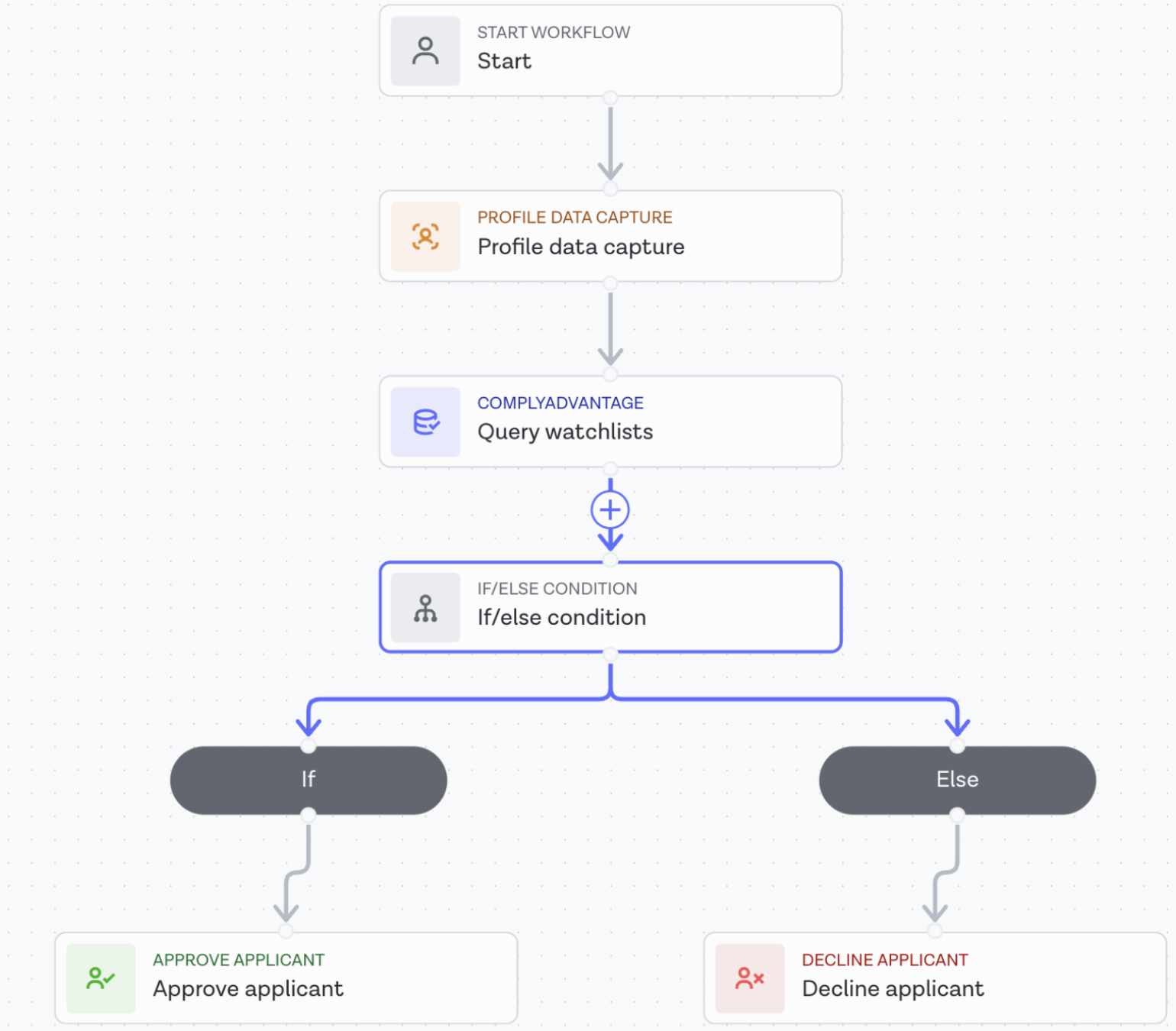
- Configure downstream branching for all three task results:
clear,considerandunidentified. For example, routeconsiderandunidentifiedresults to manual review. - Map the required task outputs to Workflow Output to retrieve them through the Retrieve Workflow Run API.
Custom configuration category coverage: The selected Screening configuration still controls which category results are returned when Custom id is populated. If you select Standard, Adverse Media and Fitness and Probity results are not returned, even if your custom configuration includes those AML categories. Select AML to include those categories in the task results.
The following example shows Profile Data Capture supplying applicant details to Query watchlists, followed by an if/else condition:
Inputs
Unlike a single full-name input, Mesh accepts first and last names separately. Map each part to the corresponding field, including for applicants whose names are presented surname-first or contain multiple words.
| Input | Required | Description |
|---|---|---|
first_name | Yes | The applicant's first name. |
last_name | Yes | The applicant's last name. |
dob | No | The applicant's date of birth. |
country | No | The applicant's country. |
First name and last name are the only required applicant inputs. Map only the fields listed above for Mesh screening.
The following example shows the required task input data:
1{2 "first_name": "Alex",3 "last_name": "Morgan"4}
You can also map the optional dob and country fields to the task inputs. These are Studio task inputs, not a request body for POST /checks; configure their mappings in the Workflow Builder.
Screening categories
The selected screening configuration determines which categories are screened:
| Category | Breakdown | Standard | AML | Description |
|---|---|---|---|---|
| Sanctions | sanction | Yes | Yes | Government and international sanctions lists. |
| Politically Exposed Persons | politically_exposed_person | Yes | Yes | Current and former holders of prominent public positions and their close associates. |
| Legal and Regulatory Warnings | legal_and_regulatory_warnings | Yes | Yes | Law enforcement and regulatory monitored lists. |
| Adverse Media | adverse_media | No | Yes | Negative events reported by publicly available media sources. |
| Fitness and Probity | fitness_and_probity | No | Yes | Indicators of an individual's suitability to hold certain roles, such as exclusions, disqualifications and suspensions. |
Fitness and Probity is available with Mesh AML, not Mesh Standard or the original Watchlist report variants.
Task outputs and results
The Query watchlists task returns one of three overall result values and per-category results under breakdown:
clear: no matches were found in the screened categories.consider: at least one screened category returned a match.unidentified: screening could not be completed.
The unidentified result is specific to Mesh; the original Watchlist Standard and AML reports return only clear or consider. Configure your workflow to handle all three Mesh outcomes, routing unidentified results to manual review rather than treating them as clear.
Breakdowns for categories that are not included in the selected configuration have no result. Do not interpret an unscreened category as a clear result.
The task also returns properties.watchlist_query_identifier, properties.alert_identifier and properties.number_of_risks. Map the outputs needed by your integration to Workflow Output; Mesh does not return a Report object through the Reports API.
Screening configurations and Custom id
A screening configuration groups the source collections to screen against with their matching rules. Unlike the original Watchlist reports, whose screening settings are configured at account setup, Mesh lets each Query watchlists task reference a configuration. Different workflows can therefore use different screening settings.
Select Standard or AML in the task's Configuration tab. To use a custom configuration, contact your CSM or Client Support. Entrust Support creates the configuration in ComplyAdvantage and supplies its ID. Enter that ID in Custom id (custom_screening_configuration); when populated, it is used instead of the default configuration ID. Leave Custom id empty to use the selected Standard or AML default.
Custom configurations cannot be created through the Dashboard. Mesh uses Entrust's ComplyAdvantage account; connecting your own ComplyAdvantage account is not supported.
See Watchlist Mesh screening configurations for the available task settings and how to request changes to source collections and matching rules.
Ongoing Monitoring
Ongoing Monitoring applies to the original Watchlist Standard and AML reports only. It is not available for Watchlist Mesh in the current release.
Introduction
For the Watchlist AML and Watchlist Standard report types, you can also enable Ongoing Monitoring, which provides continuous screening of a specified applicant to ensure continuous compliance. Following an initial Watchlist report, the applicant will be continuously checked against the relevant records, notifying you of any change in status.
If you are interested in using the Ongoing Monitor feature, it must first be enabled for your account. Please reach out to your CSM or email our Client Support team.
Note: Concurrent checks will also be enabled for your account, as Ongoing Monitoring can lead to multiple verification checks running against the same applicant.
Watchlist Ongoing Monitoring task
Ongoing Monitoring can be configured by adding a Watchlist Ongoing Monitoring task to a Studio workflow.
The output of a Watchlist Ongoing Monitoring task does not include the associated Watchlist Report results. As a result, if you have logic that depends on these results, we recommend adding a Watchlist Report task to your workflow, then add the Watchlist Ongoing Monitoring task to get updates if the user's records changed.
Below you will find an illustrated example of a Studio workflow running a Watchlist report with an Ongoing Monitor:

Ongoing Monitor notifications
In order to be notified of any changes in an applicant's watchlist status, you can configure a webhook, using the watchlist_monitor.matches_updated event.
More details regarding webhooks can be found in our API reference documentation.
You can also review the status of Ongoing Monitors on the Ongoing Monitors page of your Studio Dashboard.
FAQs
What happens when the information of an Applicant that is set up for Ongoing Monitoring is updated - will the Monitor be updated as well?
Ongoing Monitoring will not be updated with the new Applicant information. You will continue to receive updates based on the original Applicant details during the creation of an Applicant.
To update a Monitor, you can delete the existing Monitor and create a new Monitor for the updated Applicant. Please refer to our API reference documentation.
How does ongoing monitoring impact rolling deletion of applicant data setup in my account?
Rolling deletion will be disabled for the customer at the account level.