

Electronic Signature configuration
This guide describes the configuration and API interactions that are common to all of Entrust's electronic signature assurance levels — Simple (SES), Advanced (AES) and Qualified (QES). For an introduction to the solutions and help choosing an assurance level, see the Electronic Signature overview.
Request eSignature task configuration
The Request eSignature task captures the applicant's signature and is shared across all assurance levels. Its behavior is controlled by the following configuration options:
signature_assurance_level— selects the assurance level for the signing transaction. One ofsimple,advancedorqualified. This determines which verification task (Simple, Advanced or Qualified) should be used to confirm the transaction, and, forqualified, triggers issuance of a qualified certificate for the signer.country_of_operation— an optional ISO 3166-1 alpha-3 country code (for exampleGBR,FRA) that identifies the jurisdiction the signing takes place in. It defaults toGBR. For Qualified Electronic Signature (QES), this sets the legal and compliance context. Applicant-facing consent content is then localized separately using the request's locale preferences (for exampleAccept-Languagefrom the browser or webview environment) where that language is supported for the selected country, falling back to the country's default language when it is not. This is not guaranteed to match an explicitly configured SDK UI language on native integrations.signature_tag— an optional tag used to place a visible signature on the document. See Placeable signatures below.
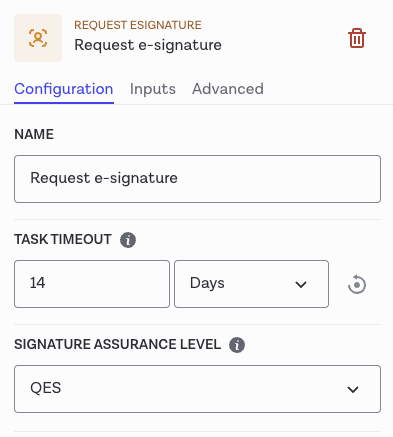
The Configuration tab of the Request eSignature task
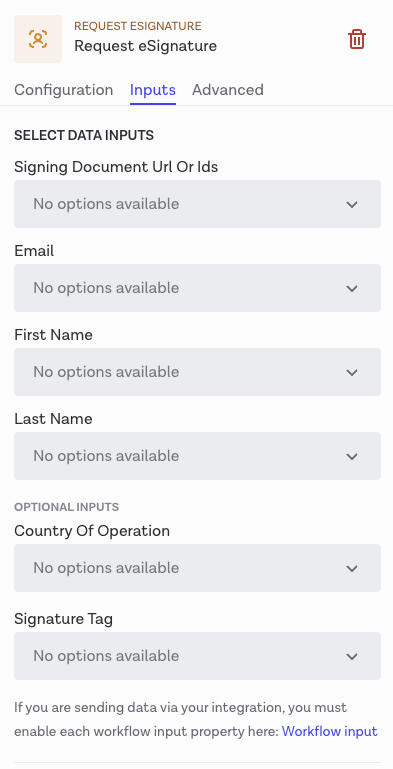
The Inputs tab of the Request eSignature task
Supplying documents to e-signature workflows
You can supply signing documents to a workflow either by hosting the PDF externally (URL input) or by privately uploading the document to Entrust via the Signing Documents API and referencing its id.
Option 1: External document URL
Provide a stable, publicly accessible HTTPS URL pointing to the PDF to be signed. Configure a custom workflow input (for example signing_document_url) in the Dashboard, then configure the Request eSignature task to read this input. Include the signing_document_url in the custom_data object when creating the workflow run.
The URL must meet the following requirements:
- Be a public, internet-reachable HTTPS URL — not
localhost/127.0.0.1, a private/internal IP address, or a VPN-only host. - Respond to both
HEADandGETrequests. - Return a
Content-Typecompatible withapplication/pdf. - Serve a document that is 10MB or smaller.
- Remain reachable for the duration of the signing session.
Option 2: Uploaded signing document (recommended for confidentiality)
Use this option when the document should not be exposed via a public URL due to confidential information stored on the document, or if multiple documents should be signed during the workflow.
Uploaded signing documents must be in PDF format, with a file size between 32KB and 10MB and a maximum of 20 pages. See the Upload Signing Document endpoint for details.
Steps:
- Create the applicant who will sign the document.
- Upload the PDF using the Upload signing document endpoint.
- Capture the returned signing document
id. - Configure a custom workflow input named
signing_document_idsin the Dashboard. - Ensure the Request eSignature task is configured to read from the
signing_document_idscustom input. - When creating the workflow run, include the uploaded document id:
1"custom_data": {2 "signing_document_ids": [ { "id": "<SIGNING_DOCUMENT_ID>" } ]3}
Multiple signing documents can be provided by adding more objects to the array. The Request eSignature task will present each document for review and signature in sequence.
Placeable signatures
By default, when a signature is recorded against the document it is rendered in the top right corner of the page. When orchestrating flows with multiple document signers, this can result in signatures overlapping. To place a signature at a defined position, add a signature tag to the PDF and reference it from the Request eSignature task using the signature_tag input.
signature_tagis an optional free-form string that identifies the placeholder tag on the document where the applicant's signature should be placed.- The tag must be present in the PDF supplied to the workflow (whether provided by URL or as an uploaded signing document), and must be wrapped in double curly braces, for example
{{signature_tag}}. Pass only the tag name (without the braces) as thesignature_taginput value. - When
signature_tagis set, the applicant's signature is rendered at the tagged location; when it is omitted, the signature is recorded without a visible placement.
We recommend setting the tag text color to match the background of the document (for example white text on a white background). This prevents the tag text from being visible on the final signed document once the signature has been rendered over it.
Placeable signatures are supported across the Simple, Advanced and Qualified assurance levels.
Interpreting verification results
The verification task (Verify eSignature Simple, Advanced or Qualified) can return a result of clear or consider:
| Verification result | Logic |
|---|---|
| clear | The signing transaction was successfully completed. All required signing document(s) were reviewed and signed by the applicant and a sealed signature transaction receipt was generated. |
| consider | The signing transaction was not completed. Use the signing status (and rejection reason, when present) to understand why. |
To understand the outcome in Studio:
- Check Verification breakdown → Transaction completed → Document signed.
- Under Document signed, check
statusfor the signing transaction status. - If the applicant explicitly rejects the document, they must provide a reason for doing so. That reason appears under Signing transaction details.
Possible signing statuses are:
- Signed
- Rejected
- Expired
- Failed
The clear and consider results are interpreted the same way for Simple
(SES), Advanced (AES) and Qualified (QES) electronic signature workflows. The
distinction between the assurance levels lies in the level of identity
verification assurance and, for QES, the issuance of a qualified certificate.
Retrieving the signed documents and media
Once the workflow has completed, the signed document and a signature transaction receipt can be retrieved using our API for all assurance levels, plus a certificate document for Qualified Electronic Signature (QES) workflows.
To obtain the relevant document IDs from the verification task, you'll first need to retrieve a list of all completed workflow tasks using the List Tasks endpoint. Subsequently, make a Retrieve Task call to the API using the task ID of the e-signature verification task, with the document IDs being returned in the output attribute of the response.
For each of the documents you wish to retrieve, make a Retrieve Electronic Signature Document call to the API using the relevant document IDs. The API returns the binary data representing the signed PDF document. This single endpoint is used to retrieve documents produced by Simple, Advanced and Qualified e-signature workflows.
Evidence files are a separate artifact and are not retrieved using the Electronic Signature Documents endpoint. They are produced only for e-signature tasks that have an associated compliance package, such as QES, and can be retrieved using the Retrieve Workflow Run Evidence Folder endpoint. Evidence files are not available for Simple (SES) or Advanced (AES) Electronic Signature workflows.