

Entrust Identity Verification in Microsoft Security Store
Start here
This guide explains how to buy Entrust Identity Verification (IDV) through the Microsoft Security Store, how to configure it after purchase, how the free trial works, how to upgrade from a trial to a paid account, how to manage your subscription and how to troubleshoot common issues.
Solution overview
Entrust Identity Verification is available in the Microsoft Security Store as an identity verification provider for Microsoft Entra ID Account Recovery and Microsoft Entra Verified ID.
When an employee recovers their account, Microsoft Entra opens an Entrust-hosted verification page. The employee captures a government-issued identity document and a motion capture. If the verification passes, Entrust issues a VerifiedIdentity credential to the employee's Microsoft Authenticator app. Microsoft Entra then runs Face Check against the credential and, in Production mode, issues a Temporary Access Pass so the employee can regain access.
Entrust hosts and runs the solution. Nothing is installed in your Microsoft Entra tenant or Azure subscription: the only resource created on your side is the SaaS subscription that Microsoft Security Store creates at purchase. Entrust issues the VerifiedIdentity credential from its own Verified ID issuer, so you don't need to register an Entra application or share any client secrets with Entrust.
Entrust Identity Verification in Microsoft Security Store is currently served from the US region only. Verification data is processed and stored in the US.
Prerequisites
Before you buy, make sure your Microsoft tenant meets the following requirements:
- Microsoft Entra ID P1
- Microsoft Entra Verified ID with Face Check
- The Temporary Access Pass and Passkey authentication methods enabled under Authentication methods in the Microsoft Entra admin center
- An administrator with the Authentication Administrator role, plus the Contributor or Billing Administrator role on the Azure subscription used for the purchase
Employees who will use account recovery must:
- Already have a strong authentication method registered, such as Microsoft Authenticator
- Have signed in to their account at least once
- Have First name and Last name properties in Microsoft Entra that match the name on their identity document
- Have Microsoft Authenticator installed on a mobile device
Buying through Microsoft Security Store
You can buy Entrust Identity Verification in either of the following ways:
- From the Microsoft Entra admin center, while creating an account recovery profile: on the Identity verification providers step, select Get Solution on the Identity Verification by Entrust card to open the listing in Microsoft Security Store
- Directly from the Entrust Identity Verification listing in Microsoft Security Store
Select the plan, which includes a free trial, and complete the purchase. The plan activates automatically, so there is no separate activation step.
What happens after purchase
When your purchase completes, Entrust automatically:
- Creates an Entrust account named after your Microsoft Security Store subscription
- Creates and publishes a ready-to-use verification workflow called Entrust Certified IDV with Verified Credential Issuance
- Sends an invitation email to the buyer, so they can sign in to the Studio Dashboard as the account owner
Microsoft shares the buyer's user principal name (UPN) with Entrust, not their contact email address. The invitation is sent to that UPN, so make sure the purchase is made with an account whose UPN can receive email.
Subscription landing page
After purchase, select Configure account now in Microsoft Security Store, or Configure Account for the subscription in the Azure portal or Microsoft 365 admin center, to open the Entrust landing page. The page confirms that Your account has been provisioned and shows:
- The email address the invitation was sent to
- The Subscription name and Term
- A What you can do next list, with links to manage your purchase in Microsoft Security Store, complete your account recovery profile in the Microsoft Entra admin center, and finish onboarding in the Studio Dashboard
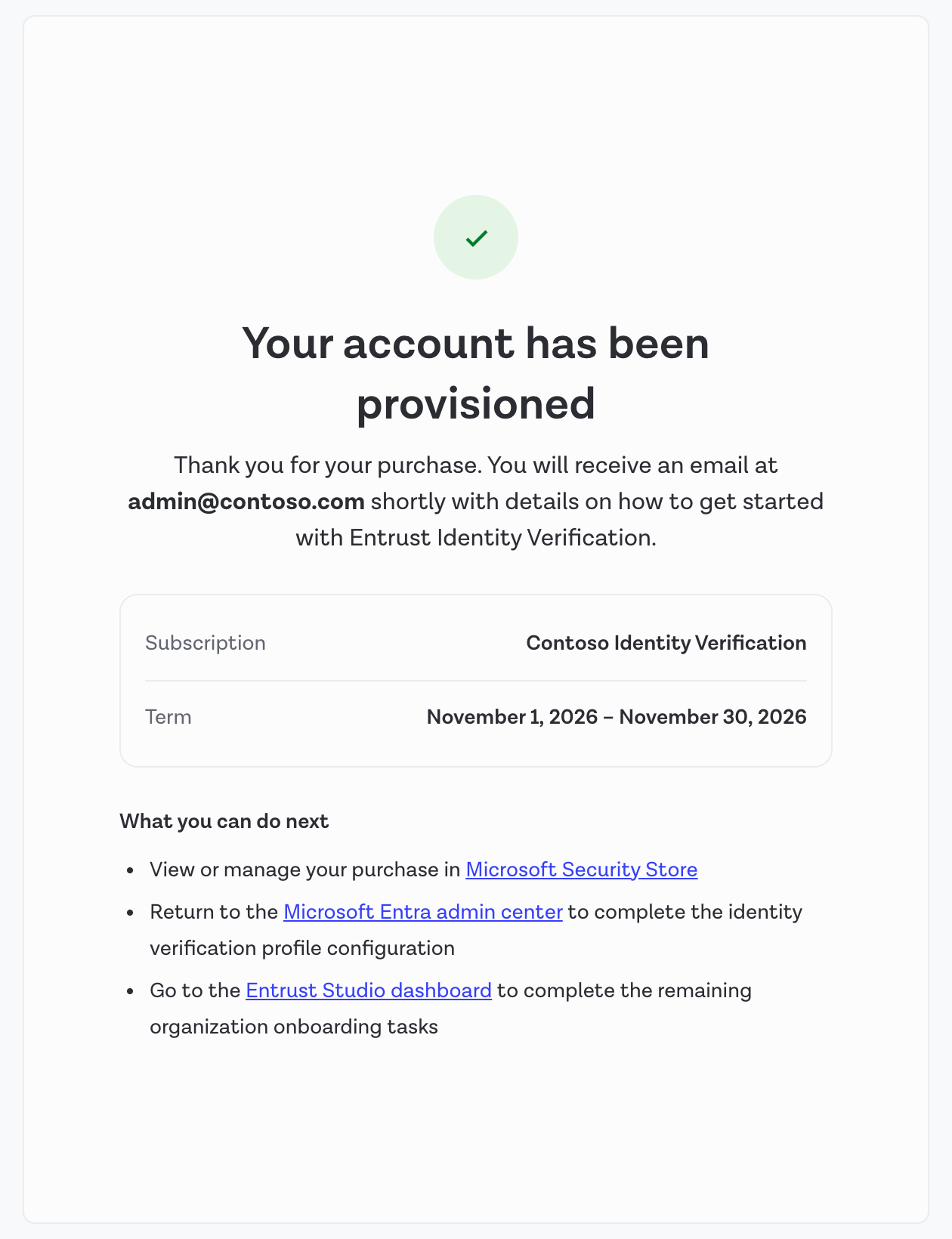
Entrust landing page after purchasing through Microsoft Security Store
Configuring after purchase
Microsoft Entra configuration
To use Entrust for account recovery, create an account recovery profile in the Microsoft Entra admin center:
- Navigate to Entra ID > Account recovery and start creating a new account recovery profile
- Enter the Profile details
- Under Recovery mode, choose Evaluation to test the experience, or Production to issue a Temporary Access Pass after a successful recovery
- Under User group, select the group of users the profile applies to
- Under Identity verification providers, choose Select on the Identity Verification by Entrust card. Once you've bought the solution, the card shows Subscribed
- Under Account validation, set Match confidence to Relaxed
- Check your settings under Review and finalize and create the profile
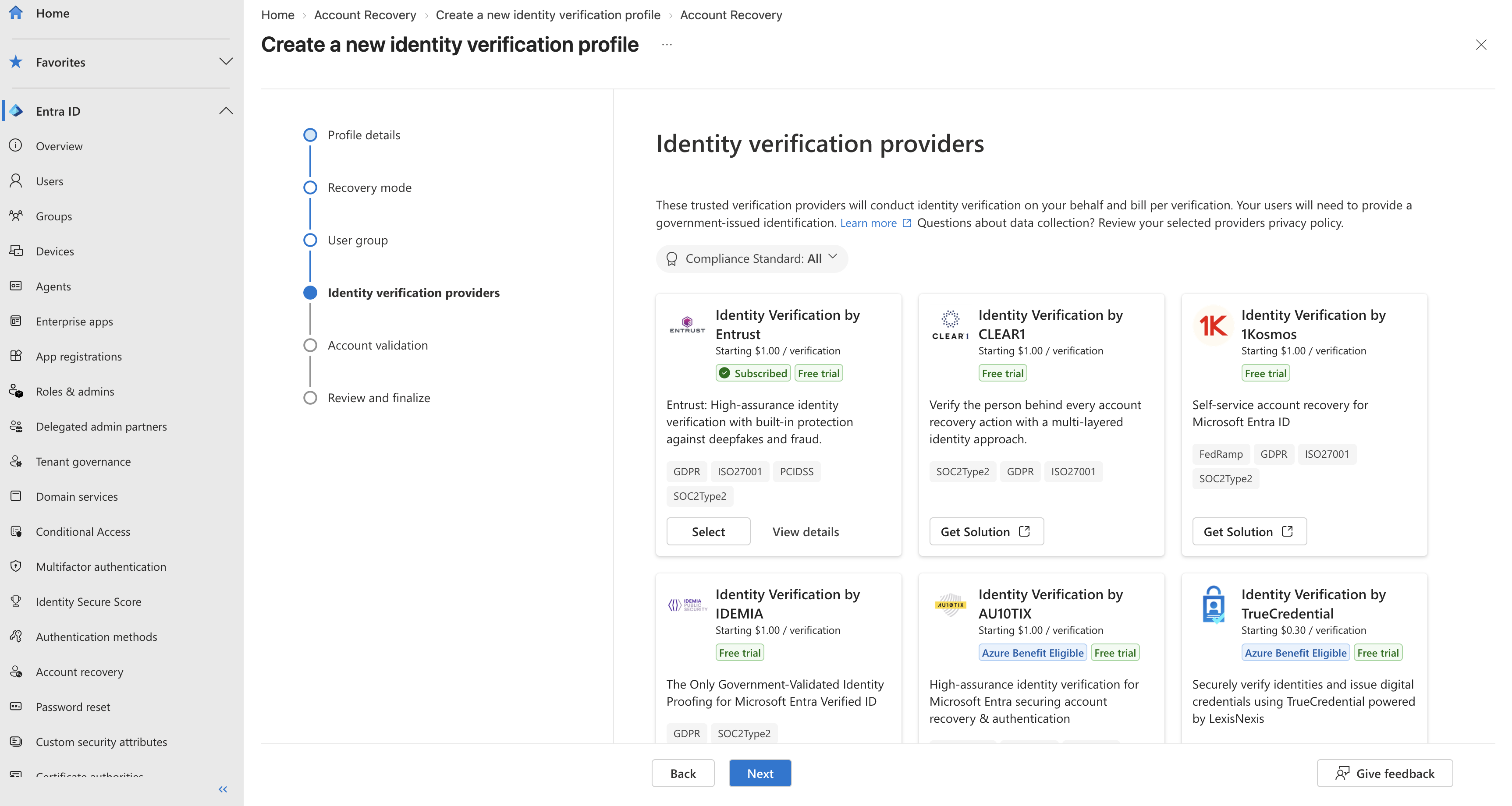
The Identity verification providers step in Microsoft Entra, after purchase
The VerifiedIdentity credential carries the employee's name exactly as printed on their identity document. Use Relaxed match confidence so that small differences between the document and the user's Microsoft Entra profile, such as middle names or accents, don't block recovery.
If you're asked for the accepted issuer of the credential, use the Entrust issuer decentralized identifier (DID): did:web:verified-id.us.onfido.com.
Workflow Studio configuration
Accept the invitation in the email to sign in to the Studio Dashboard. Your account is ready to use: the verification workflow created at purchase is already selected, so no further configuration is required.
To use a different workflow, navigate to Developers in the Studio Dashboard, select Microsoft and open the Security Store tab. Enter the Workflow ID of the published workflow you want to run when identity verification is triggered from Microsoft. You'll find the workflow ID on the Workflows page in the Studio Dashboard.
A replacement workflow must still issue the VerifiedIdentity credential through an Issue verified credential task. Without it, employees won't receive a credential and account recovery can't complete.
You only need the Security Store tab under Developers > Microsoft. The other tabs aren't used by this integration. For example, Your Entra account is only used when you issue credentials from your own Microsoft Entra tenant, as described in the Microsoft Verified ID guide.
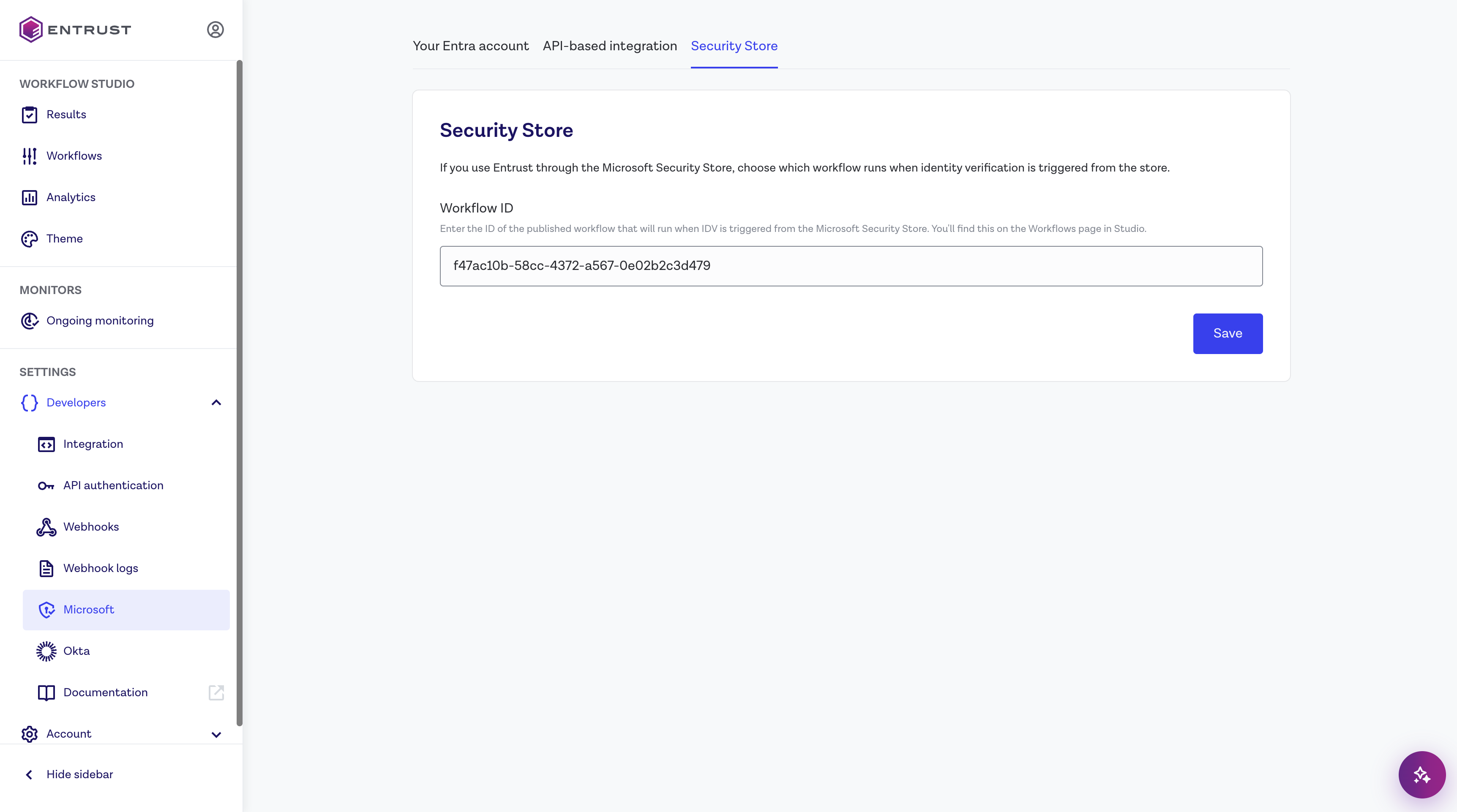
Developers > Microsoft > Security Store in the Studio Dashboard
Employee experience
Once the account recovery profile is saved, employees in the selected group can recover their account:
- The employee goes to the Microsoft sign-in page, selects Other ways to sign in, then Recover your account
- The Entrust verification page opens in a new tab. On a desktop or laptop, the employee scans a QR code to continue on their phone
- The employee captures their identity document (passport, driver's license, national identity card or residence permit) and a motion capture
- If the verification passes, the employee adds the VerifiedIdentity card to Microsoft Authenticator
- Microsoft Entra runs Face Check, which the employee completes in Microsoft Authenticator. In Evaluation mode the employee sees the result; in Production mode they receive a Temporary Access Pass
Free trial
Every new subscription starts with a free trial that includes 100 free verifications and 100 free Verified ID presentation requests. The trial ends at whichever of the following comes first:
- 30 days have passed since your subscription started
- 100 verifications have been completed
Every completed verification counts toward the 100 free verifications, whether it passes or fails.
The free verifications and presentation requests are counted for your Microsoft tenant, not for each subscription, so subscribing again doesn't give you more.
When the trial ends, employees can no longer complete verifications until you upgrade your account, as described in the next section. Your Entrust account isn't upgraded on its own when the free trial for your plan ends in Microsoft Security Store.
Upgrading from trial to paid
To keep running verifications after the trial, or to remove the trial limits at any time, the account owner must complete Entrust's identity and business verification in the Studio Dashboard. You can start the upgrade at any point during the trial; you don't need to wait until the trial ends.
On the Welcome page of the Studio Dashboard, the Verify to upgrade your plan panel guides the account owner through two verification steps, followed by a final Verification complete step. Select Start verification to begin:
| Step | What you'll need |
|---|---|
| User details | A photo ID and a selfie |
| Business details | Business name, registration number, address and website |
Business details becomes available once User details shows Verified. Each verification step shows its status: Not started, Pending, Processing, Verified or Failed.
When both steps show Verified, your account is upgraded automatically:
- The trial limits no longer apply and employees can continue to verify
- You keep any free verifications and presentation requests you haven't used, even if the 30-day trial period has already ended. For example, if you've completed 40 verifications, the next 60 are still free
- After your free verifications and presentation requests are used, you're billed for each completed verification, whether it passes or fails, and for each Verified ID presentation request
- Usage is billed through your Microsoft Security Store subscription, at the prices shown for the plan in Microsoft Security Store
- Your account, workflow and configuration stay the same, so there's nothing to reconfigure in Microsoft Entra or Workflow Studio
Only the account owner can see and complete the upgrade steps. If a verification step shows Failed, contact Entrust support.
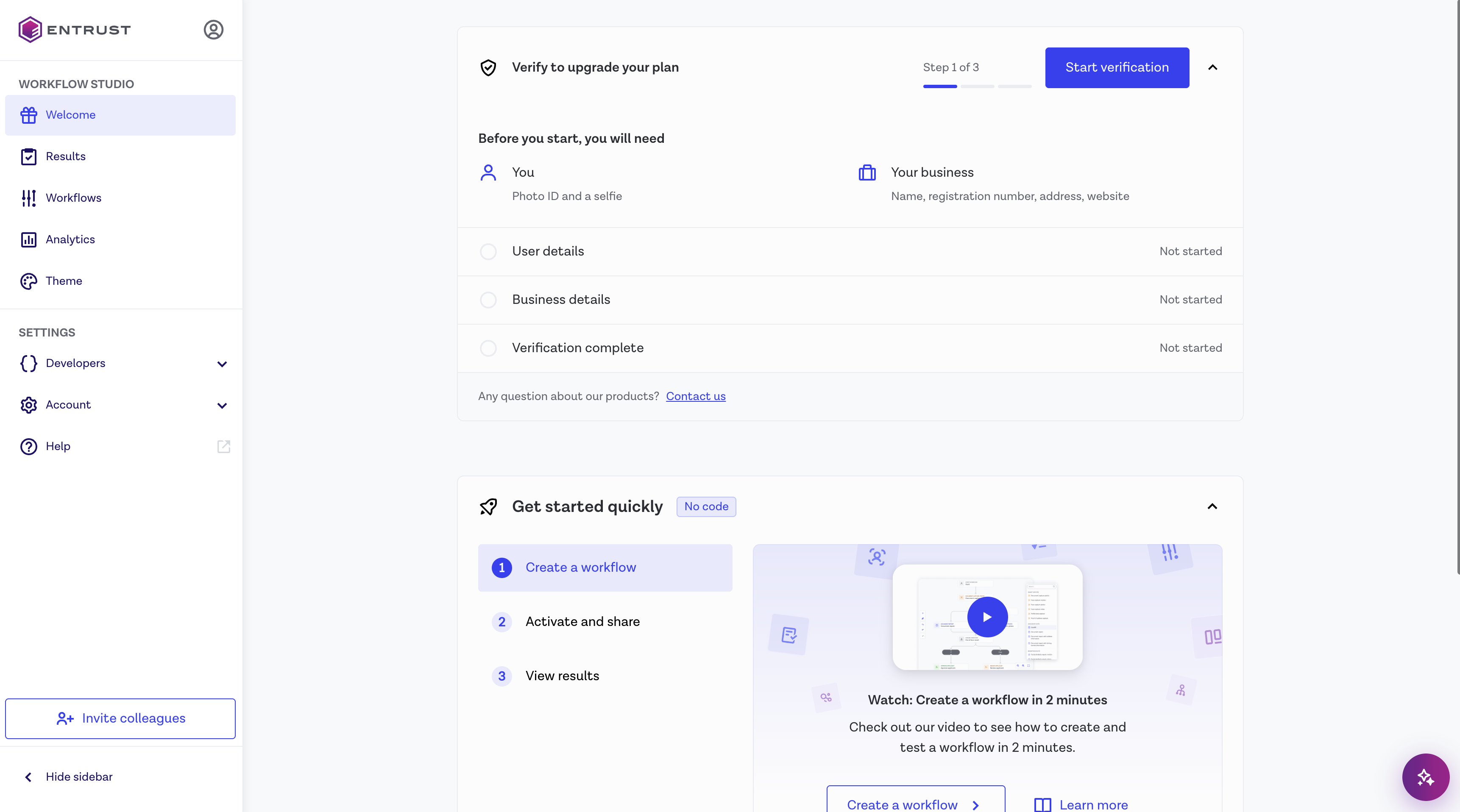
The upgrade panel on the Welcome page, before verification has started
Managing your subscription
You manage your subscription in Microsoft Security Store. Entrust updates your account automatically when the subscription changes:
| Subscription change | Effect on your Entrust account |
|---|---|
| Suspended | The account is disabled and employees can't complete verifications |
| Reinstated | The account is enabled again |
| Canceled | The account is disabled and its verification data is deleted on a rolling 30-day basis |
Troubleshooting
| Symptom | Likely cause | Check |
|---|---|---|
| No invitation email after purchase | The buyer's UPN can't receive email | Check the address shown on the subscription landing page, then contact Entrust support |
| Landing page shows "We couldn't identify this purchase" | The link from Microsoft is missing or has expired | Reopen the subscription in the Azure portal or Microsoft 365 admin center and select Configure Account again |
| Employees see "Verification could not continue" | The trial has ended, 100 trial verifications have been used, or the subscription is suspended | Complete the upgrade steps in the Studio Dashboard, and check the subscription status in Microsoft Security Store |
| Employees see "Verification is not ready yet" | No workflow is configured for Microsoft Security Store | Check the Workflow ID under Developers > Microsoft > Security Store in the Studio Dashboard |
| Verification passes but account recovery is rejected | Match confidence is set to Exact, or the user's name in Microsoft Entra doesn't match their document | Set Match confidence to Relaxed in the account recovery profile and check the user's First name and Last name |
| Employees aren't offered Recover your account | The user isn't in the profile's group, has no strong authentication method, or has never signed in | Check the profile's group and the user's registered authentication methods |