
Biometric Passkey: Integration overview
Introduction
This guide is the technical onboarding entry point for integrating the Entrust Biometric Passkey solution. It covers the component model shared by every integration boundary, what the Biometric Passkey solution delivers to your integration, an overview of the supported flows, and the Studio workflows you need to set up.
Integration architecture

Biometric Passkey orchestrates the end-to-end passkey flows and delegates identity and biometric verification to Entrust Identity Verification.
| Component | Owned by | Role |
|---|---|---|
| Your mobile app | You | Embeds the Biometric Passkey SDK and owns the mobile experience your users see. |
| Your web app | You | Starts actions from the browser and shows cross-platform step-up status to the user. It talks only to your backend. |
| Your backend | You | Connects your app to the Biometric Passkey backend and to your passkey relying party, and keeps the session and authorization decision. |
| Your passkey relying party | You | Generates WebAuthn challenges, stores verifier state, and verifies attestations and assertions. Often your application server or IDP. |
| Biometric Passkey SDK | Entrust (runs in your mobile app) | Generates passkeys, stores them in device hardware, supports the WebAuthn steps, and runs Entrust Identity Verification capture on the device. |
| Biometric Passkey backend | Entrust (self-hosted by you) | Coordinates identity verification sessions, securely stores the biometric reference, keeps flows in sync, and records audit events. |
| Entrust Identity Verification | Entrust (cloud) | Runs identity verification and biometric matching. |
What Biometric Passkey delivers to your integration
Biometric Passkey delivers three components that you assemble into your integration. The table below points to the guide that covers each one in depth:
| Component | Delivered as | Where it's covered |
|---|---|---|
| Backend | Helm chart and image archives from TrustedCare | Biometric Passkey: Deployment |
| Management dashboard | Bundled in the backend runtime images | Biometric Passkey: Dashboard and API management |
| Mobile SDK | Maven Central (Android), public GitHub Swift package repository (iOS) | Biometric Passkey: SDK integration |
Please note: The Biometric Passkey SDK and dashboard are exclusively for the management of biometric passkey credentials and are distinct and separate from the Entrust IDV SDKs. For integrating the Entrust IDV SDKs for identity verification, please refer to our documentation here.
End-to-end flows at a glance
Biometric Passkey supports five flows: registration, routine passkey authentication, in-app step-up, cross-platform step-up, and account recovery. All of them happen on a mobile device, except cross-platform step-up, which starts in a web or desktop browser and completes the biometric capture on a mobile device.
Each diagram shows the main success path between the participants, without the per-endpoint requests and responses. Error handling, retries, and canceling a flow are covered in the per-flow walkthroughs in Biometric Passkey: Core API integration.
Actors used in the diagrams:
- User — the end user.
- Mobile app — your mobile client embedding the SDK.
- Web app — your web or desktop client.
- Backend — your backend service.
- IDP — your passkey relying party.
- SDK — the Biometric Passkey SDK.
- Biometric Passkey — the self-hosted Biometric Passkey backend.
- IDV — Entrust Identity Verification.
Diagrams group actors by scope: Your scope (what you operate), Biometric Passkey (what the solution provides), and Entrust cloud (hosted IDV).
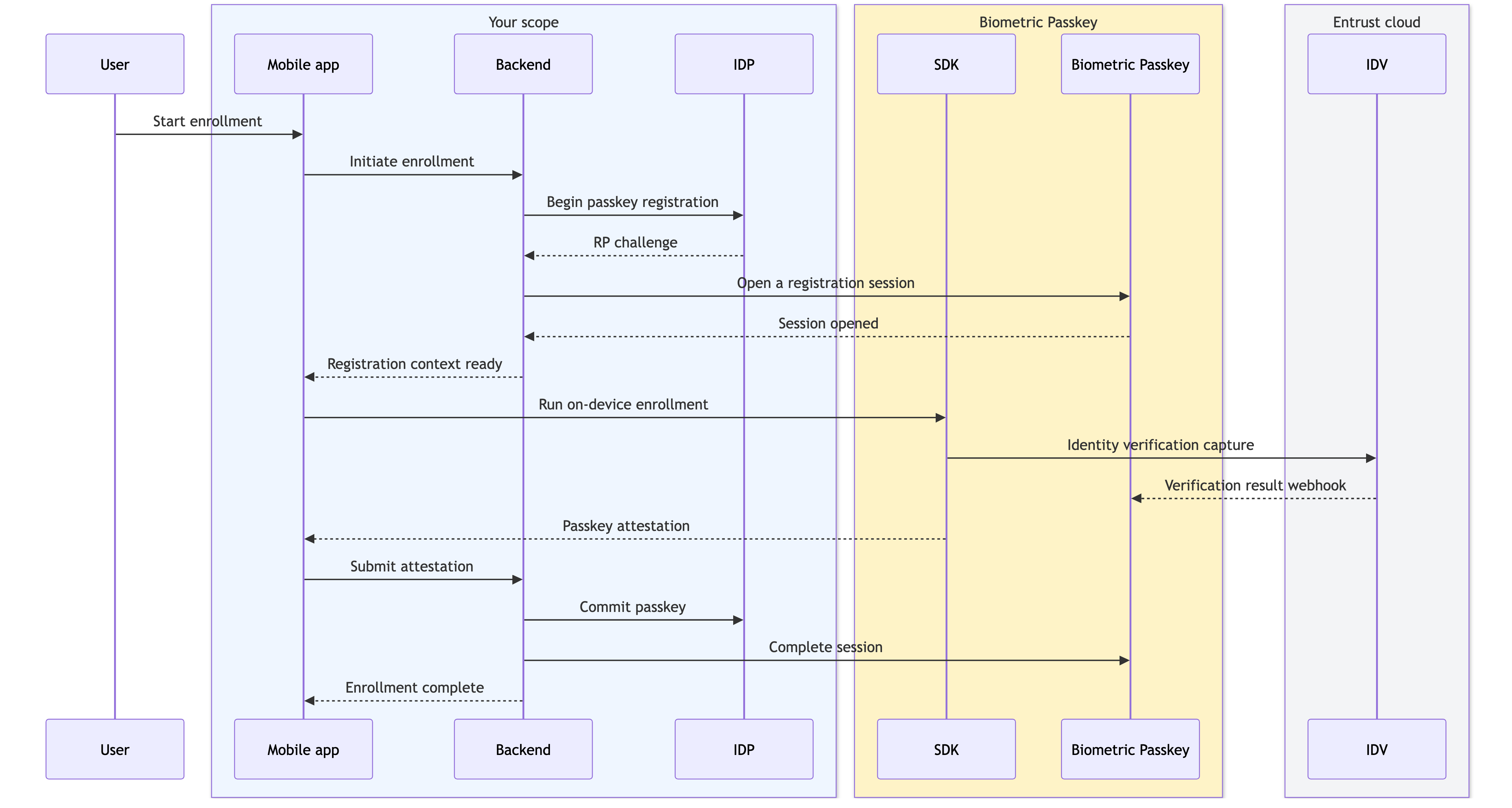
Registration
When you'd use it
A new user adds a biometric passkey to your application for the first time, on a single mobile device.
What the user sees
They tap an enroll action, complete an identity verification check (for example a document scan and selfie), and confirm a platform passkey prompt.
What it produces
A passkey credential committed at your IDP, plus a user-scoped encrypted biometric token stored by Biometric Passkey for later verification.
Key steps
- User taps the enrollment action in your mobile app.
- Mobile app initiates enrollment with your backend.
- Backend opens a passkey registration with your IDP and a registration session with Biometric Passkey.
- Mobile app runs the on-device enrollment through the SDK, which captures the user's identity through Entrust Identity Verification. The verification result reaches Biometric Passkey through the inbound webhook. If the identity verification fails the flow ends here and no credential is created; otherwise the SDK produces a passkey attestation.
- Mobile app submits the attestation to your backend.
- Backend commits the passkey at your IDP, then completes the session with Biometric Passkey.
For full request and response details, see Biometric Passkey: Core API integration — Registration.
Routine passkey authentication
When you'd use it
Day-to-day, low-risk sign-in or session resumption, where standard platform passkey authentication is sufficient and you do not need a fresh biometric match.
This flow uses your IDP's standard WebAuthn authentication directly. The user unlocks the device with the platform authenticator (Face ID, Touch ID, or device passcode) and your IDP verifies the resulting assertion. Biometric Passkey is not involved and no biometric match is performed by Entrust Identity Verification.
Promote to In-app step-up below for any action that requires a fresh, attended biometric verification against the originally enrolled person.
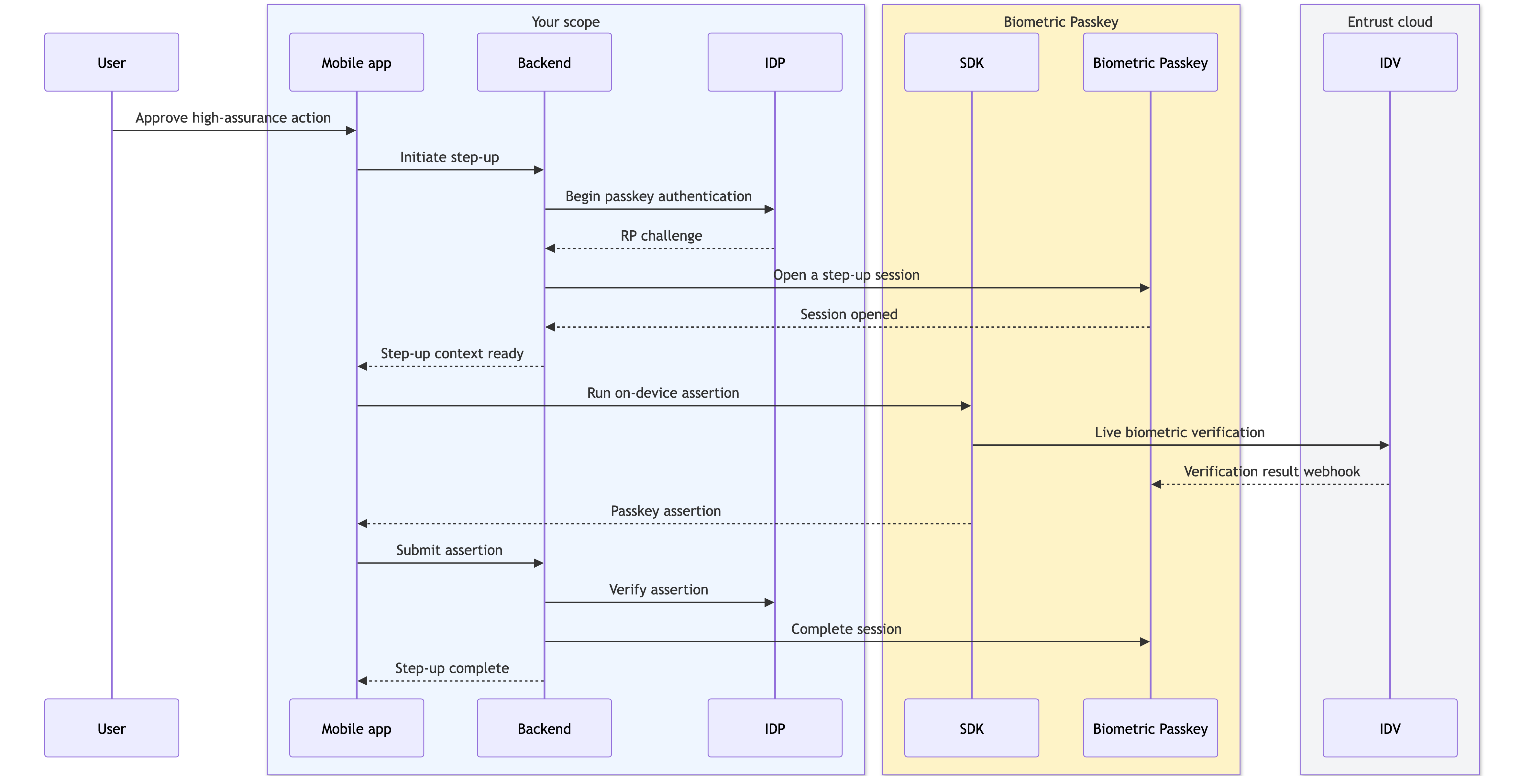
In-app step-up
When you'd use it
A high-assurance action inside your mobile app, such as approving a protected transaction, changing security settings, or releasing a sensitive document, where you need a live biometric match against the originally enrolled person.
What the user sees
They confirm the action and complete a live biometric capture. After the capture succeeds, the SDK completes the passkey assertion for your app to send to your backend.
What it produces
A passkey assertion verified by your IDP, conditional on Entrust Identity Verification confirming a live match against the encrypted biometric token captured at enrollment.
Key steps
- User confirms a high-assurance action in your mobile app.
- Mobile app initiates a step-up with your backend.
- Backend begins a passkey authentication with your IDP and opens a step-up session with Biometric Passkey.
- Mobile app runs the on-device assertion through the SDK, which captures a live biometric through Entrust Identity Verification. Entrust Identity Verification compares the capture against the stored encrypted biometric token, and the result reaches Biometric Passkey through the inbound webhook. If the live biometric does not match, Biometric Passkey rejects completion and the flow fails; otherwise the SDK returns a passkey assertion for your backend to complete.
- Mobile app submits the assertion to your backend.
- Backend verifies the assertion at your IDP, then completes the session with Biometric Passkey.
For full request and response details, see Biometric Passkey: Core API integration — In-app step-up.
Cross-platform step-up
When you'd use it
A high-assurance action that starts in a web or desktop browser where the user must complete the biometric verification on their previously enrolled mobile device.
What the user sees
They confirm the action in the browser, receive a notification (or scan a QR code or tap a deep link) on their mobile device, and then complete the live biometric capture on mobile. The browser updates once the mobile leg completes.
What it produces
The same outcome as in-app step-up — a passkey assertion gated by a live biometric match — completed across two devices through a handoff token issued by Biometric Passkey.
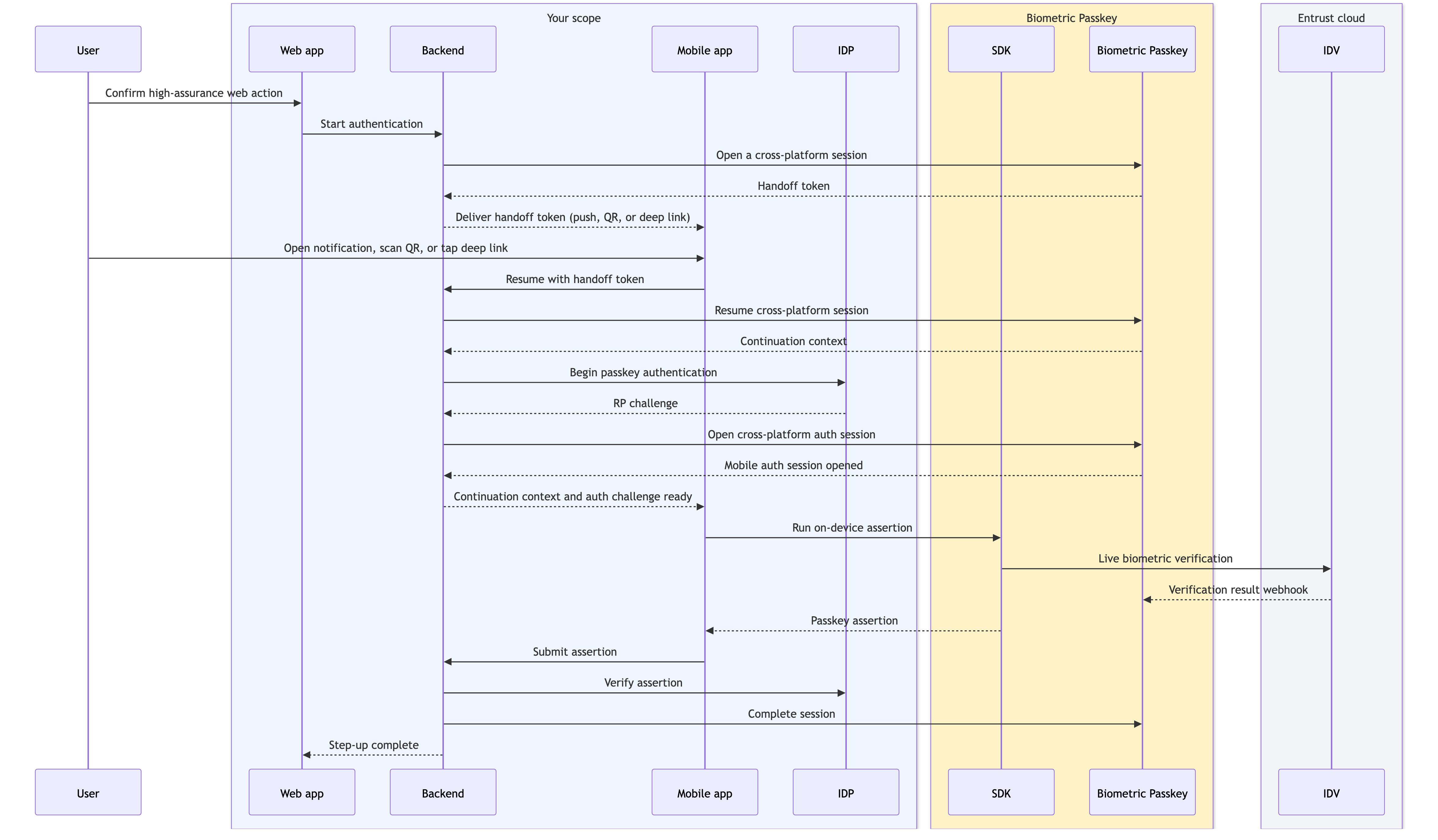
Push notification is the recommended primary delivery channel because it offers the most frictionless user experience. You can offer QR code or deep link as fallbacks. The handoff token delivery channel is your decision.
Key steps
- User confirms a high-assurance action in your web app.
- Backend opens a cross-platform session with Biometric Passkey and receives a handoff token.
- Backend delivers the handoff token to the user's mobile device through your chosen channel (push, QR code, or deep link).
- User opens the notification, scans the QR code, or taps the deep link on their mobile device.
- Backend consumes the handoff token, begins passkey authentication with your IDP, opens the cross-platform auth session with Biometric Passkey, and returns the mobile auth context to the app.
- Mobile app runs the on-device assertion through the SDK, which captures a live biometric through Entrust Identity Verification. If the live biometric does not match, Biometric Passkey rejects completion and the flow fails; otherwise the SDK returns a passkey assertion.
- Backend verifies the assertion at your IDP, completes the session with Biometric Passkey, and updates the web app.
For full request and response details, see Biometric Passkey: Core API integration — Cross-platform step-up.
Account recovery on a new device
When you'd use it
The user has lost access to their previously enrolled device (for example their phone was lost, stolen, or replaced) and needs to regain access on a new mobile device without re-running the full identity verification.
What the user sees
On the new device they start recovery from your app, complete a live biometric capture, and create a replacement credential.
What it produces
A replacement passkey credential at your IDP, gated by Entrust Identity Verification confirming the live biometric matches the encrypted biometric token captured at the original enrollment.
Key steps
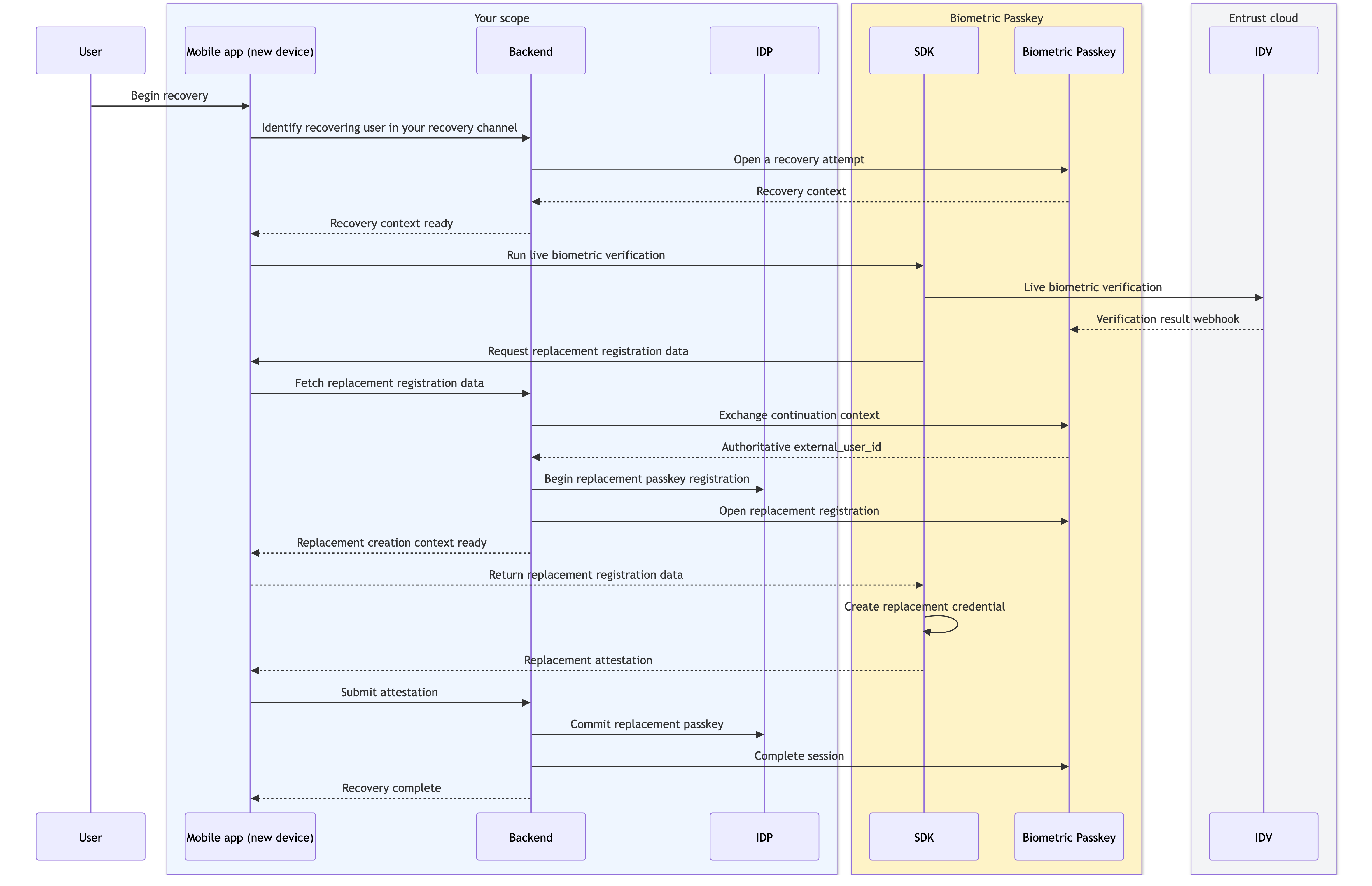
- User starts recovery in your mobile app on the new device.
- Backend identifies the recovering user through your recovery channel and opens a recovery attempt with Biometric Passkey.
- Mobile app runs recovery through the SDK, which captures a live biometric through Entrust Identity Verification. Entrust Identity Verification compares it against the original encrypted biometric token, and the result reaches Biometric Passkey through the inbound webhook. If the live biometric does not match, recovery is denied and no replacement credential is issued.
- SDK calls your app's recovery registration provider. Your backend exchanges the continuation context with Biometric Passkey, begins a replacement passkey registration with your IDP, and returns the replacement registration data to the SDK.
- SDK creates the replacement credential on-device and produces a replacement attestation.
- Backend commits the replacement passkey at your IDP, then completes the session with Biometric Passkey.
For full request and response details, see Biometric Passkey: Core API integration — Account recovery. For the corresponding SDK method signatures across all flows, see Biometric Passkey: SDK integration.
Workflow Studio configuration
The Biometric Passkey backend brokers identity and biometric verification through Entrust Identity Verification. Before deploying the backend you will need to set up Studio workflows that Biometric Passkey will call, then supply their workflow IDs to the backend through three environment variables: one for registration, one for step-up verification, and one for recovery verification. Sign in to the Studio dashboard for your region, build the workflows in the Workflow Builder, then copy each published workflow ID and supply it to the backend:
| Variable | Used for |
|---|---|
| BIOMETRIC_PASSKEY_IDV_REGISTRATION_WORKFLOW_ID | Identity verification at enrollment |
| BIOMETRIC_PASSKEY_IDV_STEP_UP_WORKFLOW_ID | Step-up verification |
| BIOMETRIC_PASSKEY_IDV_RECOVERY_VERIFY_WORKFLOW_ID | Live biometric verification during account recovery on a new device |
You can supply the same workflow ID to the step-up and recovery variables, or supply different IDs if you want to differentiate task configuration between step-up and recovery. See Biometric Passkey: Deployment for the full environment variables and see the Workflow Studio guide for the catalog of available workflow tasks.
Entrust-provided workflow templates
To accelerate your integration, Entrust offers two Biometric Passkey workflow templates that cover the identity verification steps in the enrollment, step-up, and recovery flows described in End-to-end flows at a glance. Select one of the following templates from the Workflow Builder template selector when creating a new workflow. You can deploy each template as is, adjust individual task configuration to match your risk policy, or use them as reference designs while you build your own workflows.
Biometric Passkey enrollment with document and biometrics
This template prepares a new user for future Biometric Passkey authentication. The applicant captures a supported identity document, performs a live motion biometric capture, and the workflow generates an encrypted biometric token from the captured biometrics that the Biometric Passkey backend stores as the user's biometric reference.
The template also includes a face-only branch for users who are already verified. When your backend supplies a previously issued encrypted biometric token on the registration request via prior_biometric.encrypted_biometric_token, the workflow skips document capture and performs face capture only, verifying the live capture against the supplied token. See the registration walkthrough in Biometric Passkey: Core API integration for the request shape.
Tasks included in this template:
- Document capture task
- Document report task
- Face capture: motion task
- Facial similarity report: motion task
- Enroll biometrics task — produces the encrypted biometric token that the backend persists for the user
- Authenticate biometrics task — runs on the face-only branch when a prior encrypted biometric token is supplied
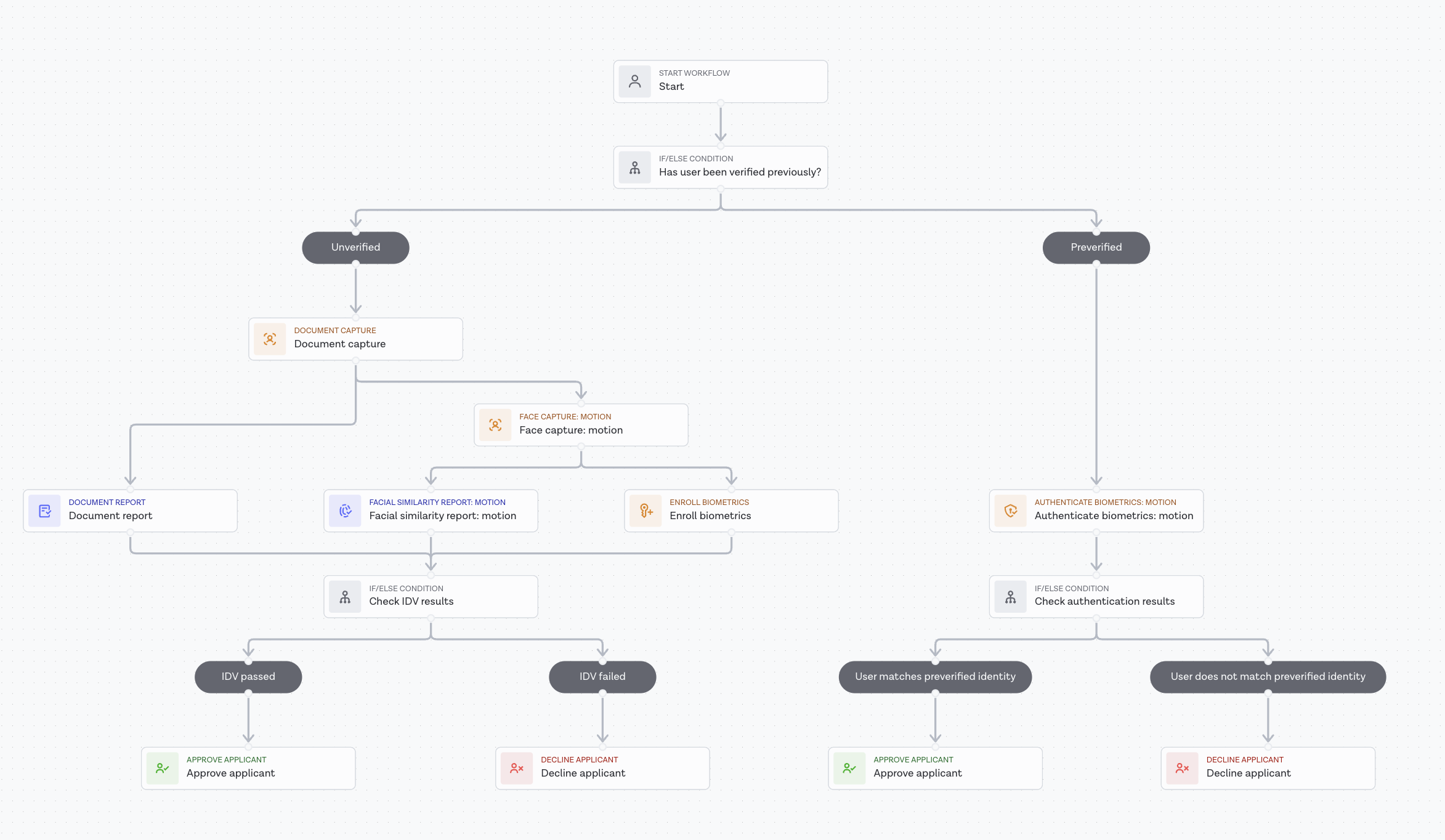
The enrollment template, with a face-only branch for users whose backend already holds an encrypted biometric token.
Biometric Passkey authentication and recovery
This template steps up returning users during high-risk moments such as account recovery, protected transaction approvals, or sensitive profile changes. The Biometric Passkey backend supplies the user's stored encrypted biometric token as workflow input, and the applicant performs a live motion biometric capture that is compared against the supplied token. The template can route the applicant to a failure outcome after a configurable number of retries, which you tune to match your policy.
The same template covers both step-up and recovery verification: you can supply the same workflow ID to both BIOMETRIC_PASSKEY_IDV_STEP_UP_WORKFLOW_ID and BIOMETRIC_PASSKEY_IDV_RECOVERY_VERIFY_WORKFLOW_ID, or deploy two copies in Workflow Builder if you want to tune retry, timeout, or liveness configuration differently for the two cases.
Tasks included in this template:
- Authenticate biometrics task — verifies the live biometric capture against the supplied encrypted biometric token
- Retry task — bounds the number of biometric attempts; configure the limit to match your policy
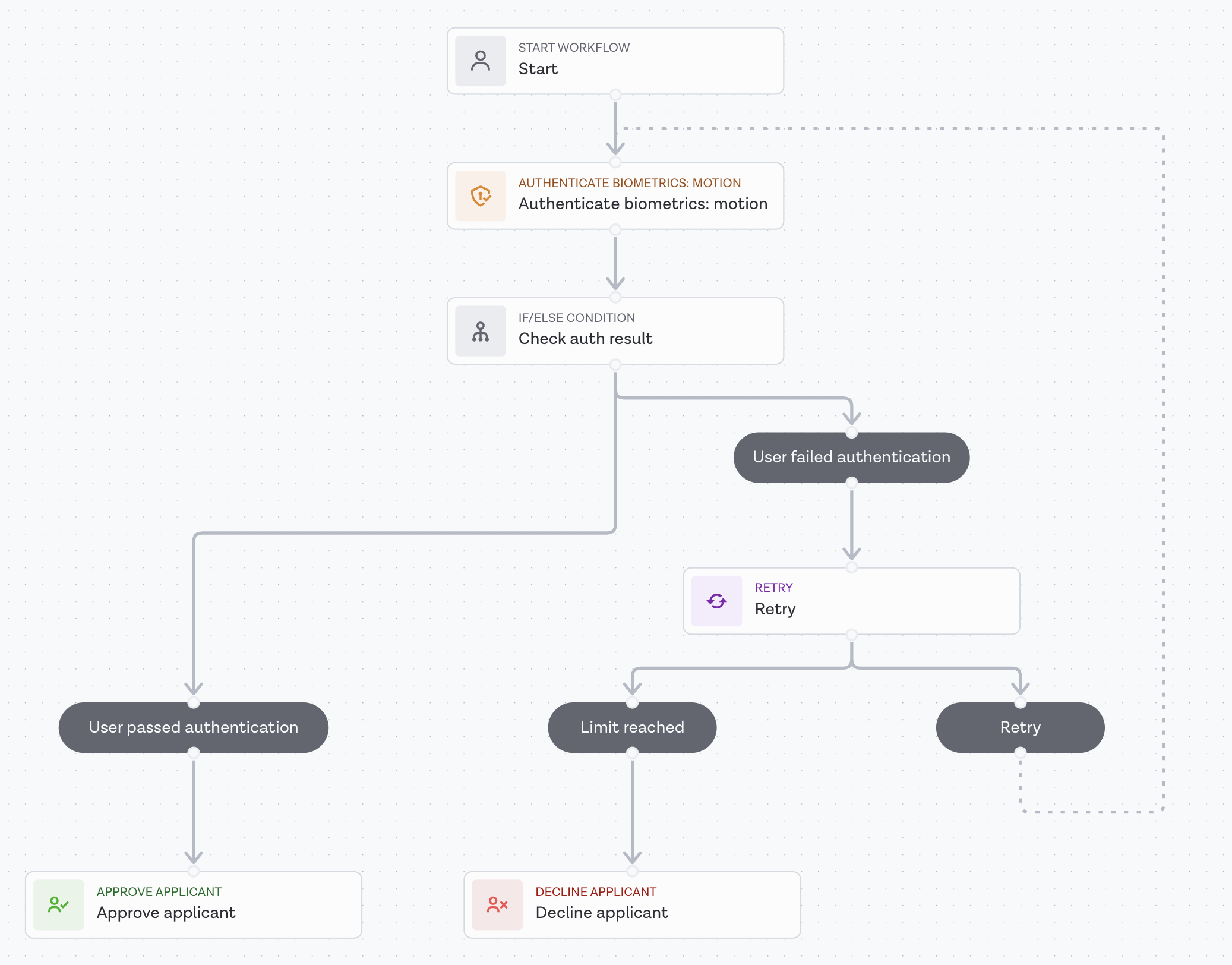
The authentication template, used for both step-up and recovery verifications.
Please note: Templates are provided for guidance and informational purposes only. Check that they meet your policy, risk, and business requirements in the context of your specific use case.
Workflow requirements for custom configurations
If you build your own workflows from scratch in the Workflow Builder instead of starting from the Entrust-provided templates, or if you modify a template significantly, the workflows you supply for the three environment variables above must satisfy the contract that the Biometric Passkey backend depends on.
Registration workflow
- The
starttask must declare a workflow input namedencrypted_biometric_tokenwith semantic typeencrypted_biometric_token. The Biometric Passkey backend populates this input on every registration run. - For applicants the backend has not previously verified, the workflow must produce a new encrypted biometric token from the captured biometrics and surface it on the workflow run output under an
encrypted_biometric_tokenkey. The Biometric Passkey backend persists this token as the user's biometric reference; a passing registration run that omits this output is treated as a failure. - For the prior-biometric branch (when an encrypted biometric token is supplied as input), no new token needs to be produced. The workflow verifies the live capture against the supplied token and routes to a pass or fail terminal.
- The workflow must terminate in standard Workflow Studio FINAL tasks so the run resolves to
approvedordeclined. Other terminal statuses are treated as registration failures by the backend.
Step-up and recovery workflows
- The
starttask must declare the sameencrypted_biometric_tokenworkflow input. The Biometric Passkey backend supplies the user's stored token on every step-up and recovery run. - The workflow must verify the live capture against the supplied token and route to a pass or fail terminal. No new token needs to be produced or surfaced on output.
- For the recovery workflow specifically, a
declinedterminal status is interpreted by the backend as a recovery match failure and surfaces a dedicated recovery error code to your caller. Route the face-mismatch case todecline_applicantrather than letting the run resolve toerrororabandoned.
Reserved input keys
Do not place an encrypted_biometric_token key inside workflow_input.custom_data on any Biometric Passkey API request. That key is reserved by the Biometric Passkey backend; requests that set it are rejected. The Biometric Passkey backend supplies this workflow input on your behalf.